How to Archive an Instagram Post: 3 Steps and Restore
Quick answer
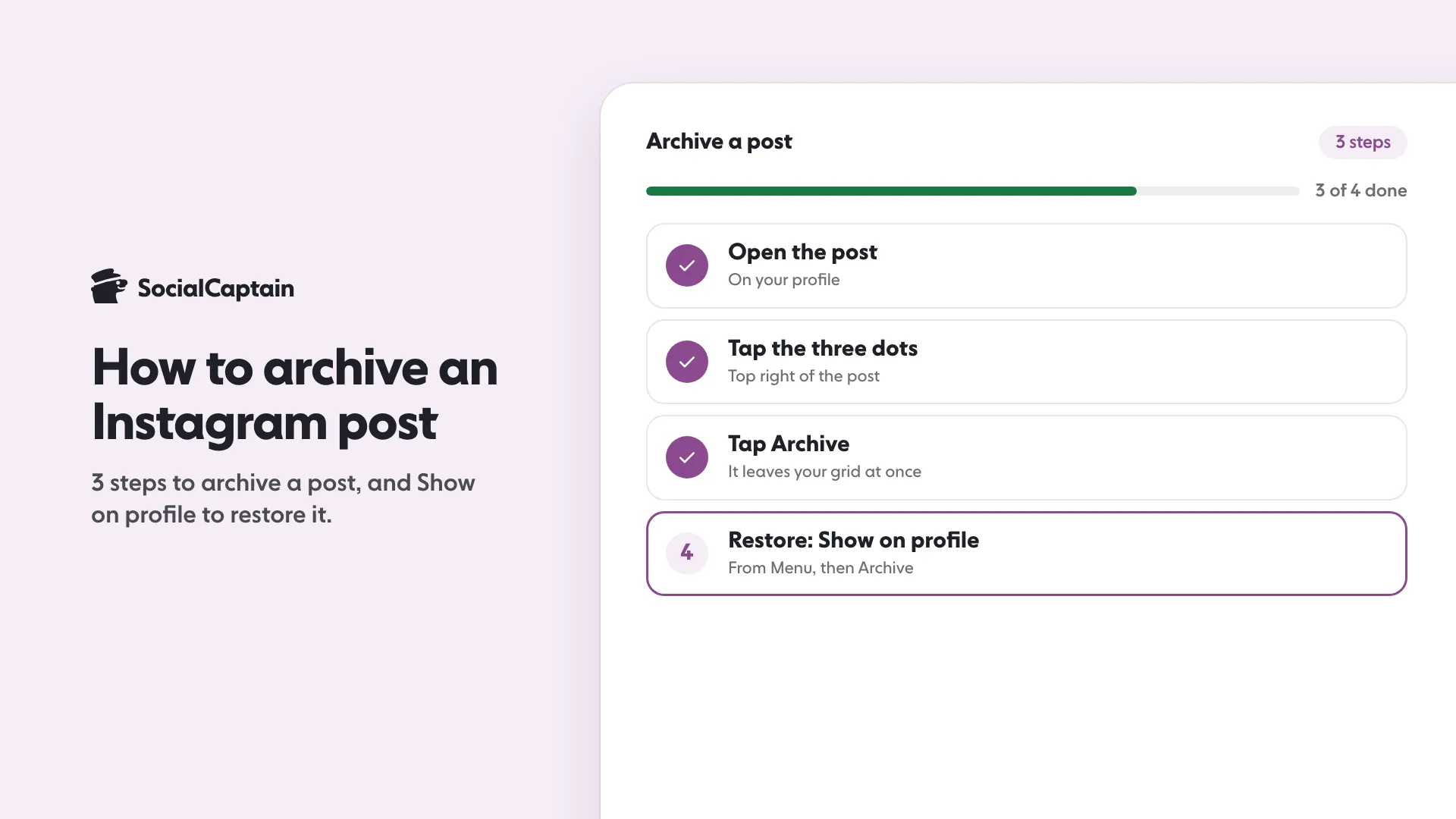
To archive an Instagram post, open it on your profile, tap the three dots and tap Archive. The post leaves your public grid at once and moves to a private archive, keeping its likes and comments.
- Restore it from the Posts archive with Show on profile.
- Deleted posts stay in Recently deleted for 30 days.
- A restored post returns to its original grid position.
On this page8 sections
To archive an Instagram post, open it on your profile, tap the three dots and tap Archive. The post leaves your public grid straight away and moves to a private archive that only you can see, keeping its likes and comments. This guide gives the 3 steps, where to find the Posts archive, how to restore a post with Show on profile, and how archiving differs from deleting.
How do you archive an Instagram post in 3 steps?
The steps are the same on iPhone and Android:
- Open the post. Go to your profile and tap the post you want to hide.
- Tap the three dots. They sit at the top right of the post.
- Tap Archive. The post disappears from your profile grid at once.
The post is not deleted, and the guides that tested it report no notification to your followers. Menu labels move between app versions, so if you do not see the option, update the app and check the three-dot menu again.
To archive several posts at once, some app versions let you use Your activity, then Photos and videos, then Posts, then Select, and tap Archive at the bottom. There is no bulk option in every version.
What does archiving do to likes and comments?
Archiving is a visibility switch, not a deletion. Guides that tested it agree on what stays and what changes:
- Likes and comments are kept with the post and show again when you restore it.
- The caption, hashtags, tags and location stay as they were.
- Others cannot see the post, including people you tagged.
- Anyone who already saved or screenshotted it keeps their copy.
Because the post leaves your grid, check how the grid looks afterwards. The free Instagram grid preview shows how a profile looks with and without a post.
Where do you find archived posts?
Open your profile, tap the menu (three lines), and tap Archive. A dropdown at the top switches between archive types, so choose Posts archive to see archived posts. Instagram sometimes moves this control, so if you do not see it, look under Your activity as well.
Stories work separately. If Save story to archive is switched on under Settings, then Archiving and downloading, your Stories are saved to the Stories archive after they expire. Otherwise a Story is gone after 24 hours unless you add it to a Highlight.
How do you unarchive an Instagram post?
- Go to your profile, tap the menu and tap Archive.
- Switch to Posts archive and open the post.
- Tap the three dots, then Show on profile.
The post returns to its original place in your grid, based on its first publish date, and not at the top as a new post. Guides that tested it report no notification to followers, and the likes and comments return with it.
What is the difference between archive and delete?
| Archive | Delete | |
|---|---|---|
| Visible to others | No | No |
| Can you get it back | Yes, with no time limit | Yes, for 30 days |
| Likes and comments | Kept | Kept only if restored in time |
| After the window | Stays archived until you act | Removed permanently |
Instagram says that content you delete moves to Recently deleted and is removed for good 30 days later, or up to 24 hours later for Stories that are not in your Stories archive. You find Recently deleted in your settings, next to your archive, and you can restore or permanently delete each item there.
The simple rule is to archive when you might want the post back and delete only when you are sure. Hiding comments is a third option that does neither: it changes who sees the discussion and leaves the post public.
When should you archive a post?
Archiving suits posts that are fine but no longer fit. Common cases:
- An old promotion or event that has ended.
- A post that no longer matches your profile after a change of topic, style or name.
- A seasonal post you plan to bring back next year.
- A grid you are tidying before sharing your profile with a brand or a new audience.
Check your numbers first. A post with strong saves or shares may still be bringing new people to your profile, and Instagram Insights: 9 Metrics to Track and What They Mean shows how to see that before you hide it.
Is archiving the same as hiding your followers or your profile?
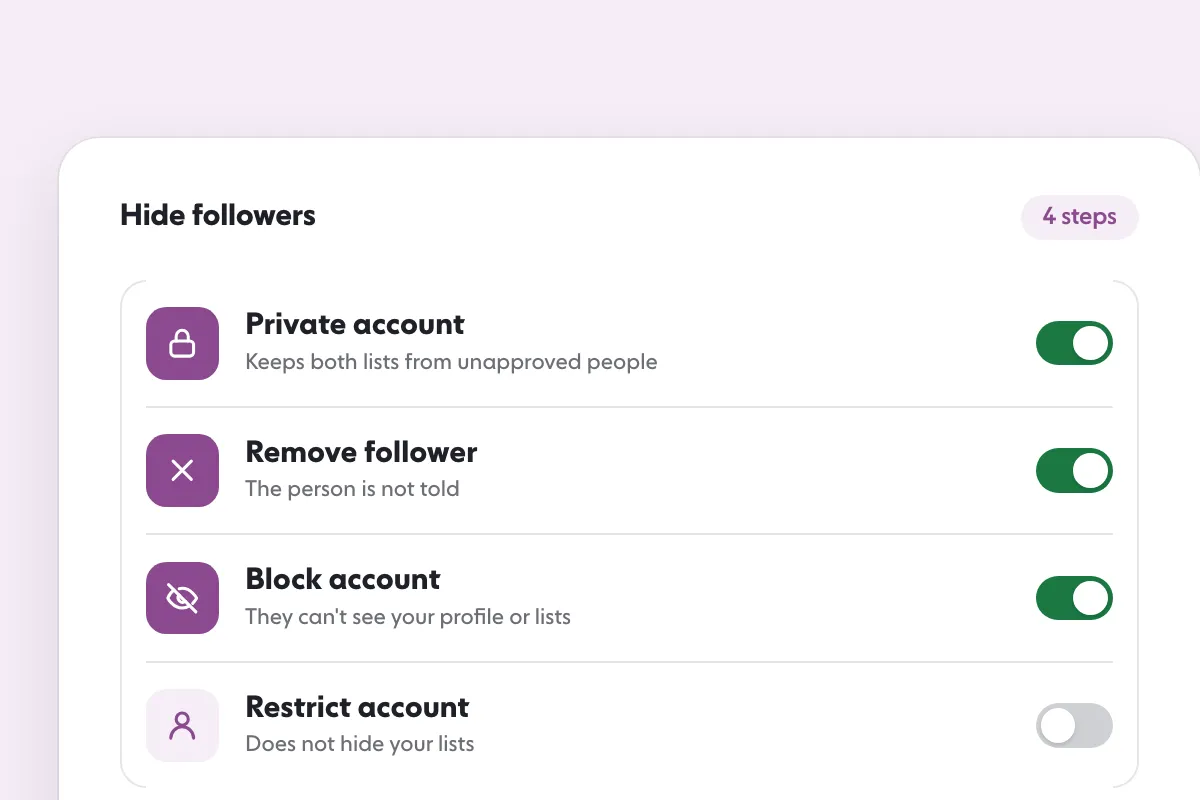
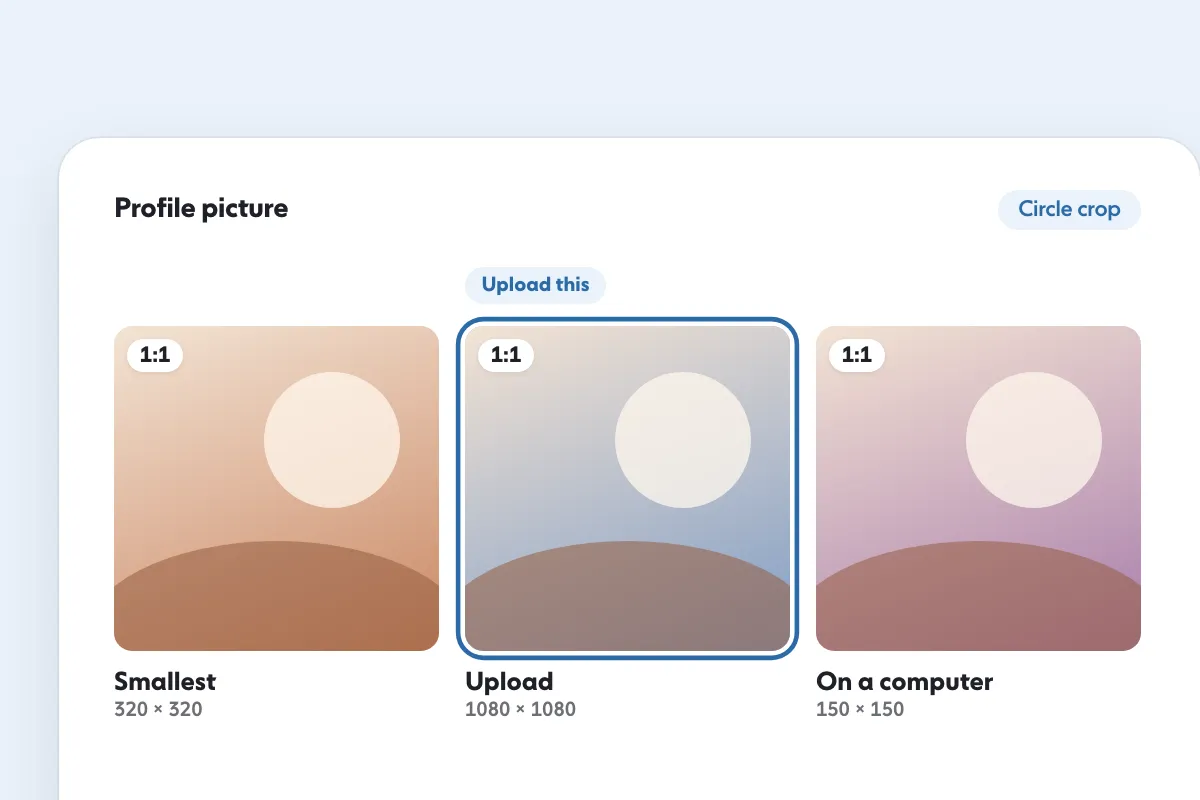
No. Archiving hides one post. If you want to control who can see your follower lists, How to Hide Your Followers on Instagram in 4 Steps covers the options. If you want a cleaner first impression, review your picture and bio too: Instagram Profile Picture Size: 1080 x 1080, Circle Crop covers the picture, and Instagram Explore Page: How It Works and 6 Ways to Appear explains how posts reach people who do not follow you yet.
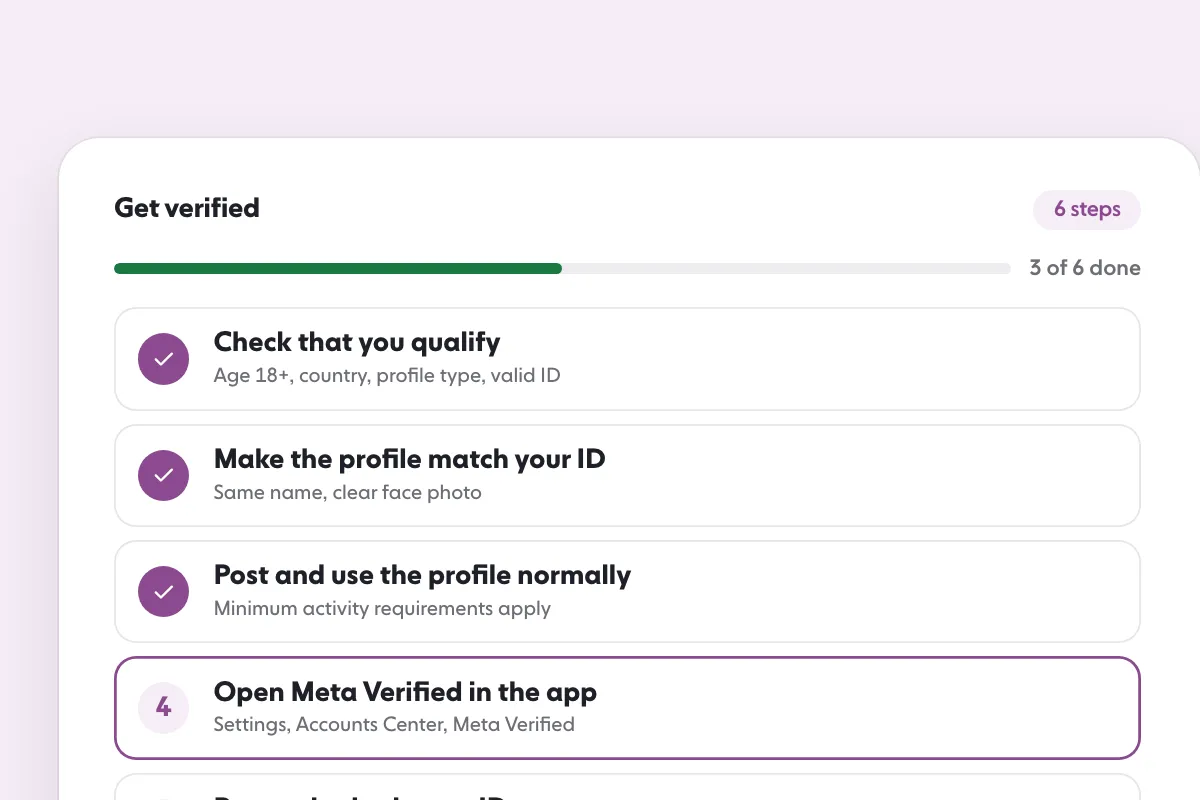
For the rest of your account basics, start with How to Get Verified on Instagram: 6 Steps and Requirements. And if you are tidying a profile before a push for new followers, SocialCaptain’s plans add real people matched to your niche, so they find a grid that shows your best work.
FAQ
How do you archive a post on Instagram?
Open the post on your profile, tap the three dots at the top right and tap Archive. The post leaves your profile grid at once and moves to your private archive.
How do you unarchive an Instagram post?
Go to your profile, tap the menu, tap Archive and switch to Posts archive. Open the post, tap the three dots and tap Show on profile. It returns to its original place.
Does archiving a post delete its likes and comments?
No. The likes and comments stay with the archived post and reappear when you restore it. Deleting a post is different, because it moves to Recently deleted and is removed for good after 30 days.
Do followers get notified when you archive a post?
Guides that tested it report no notification when you archive a post or when you restore it. The post simply leaves or returns to your grid.
What is the difference between archiving and deleting an Instagram post?
An archived post is hidden from everyone but you and stays until you act. A deleted post moves to Recently deleted, where you can restore it for 30 days, then it is removed permanently.
Related guides
Accounts and verification
How to Hide Your Followers on Instagram in 4 Steps
Accounts and verification
How to Get Verified on Instagram: 6 Steps and Requirements
Formats and sizes
Instagram Profile Picture Size: 1080 x 1080, Circle Crop
Written by Clara Ivens
Instagram growth editor
Clara Ivens covers Instagram growth on the SocialCaptain blog: followers, Reels, hashtags, bios, captions and how reach works. Each guide follows Instagram's own help pages and announcements, and lists its sources at the end.
All articles by Clara Ivens


