How to Go Live on Instagram: 6 Steps, Guests, Scheduling
Quick answer
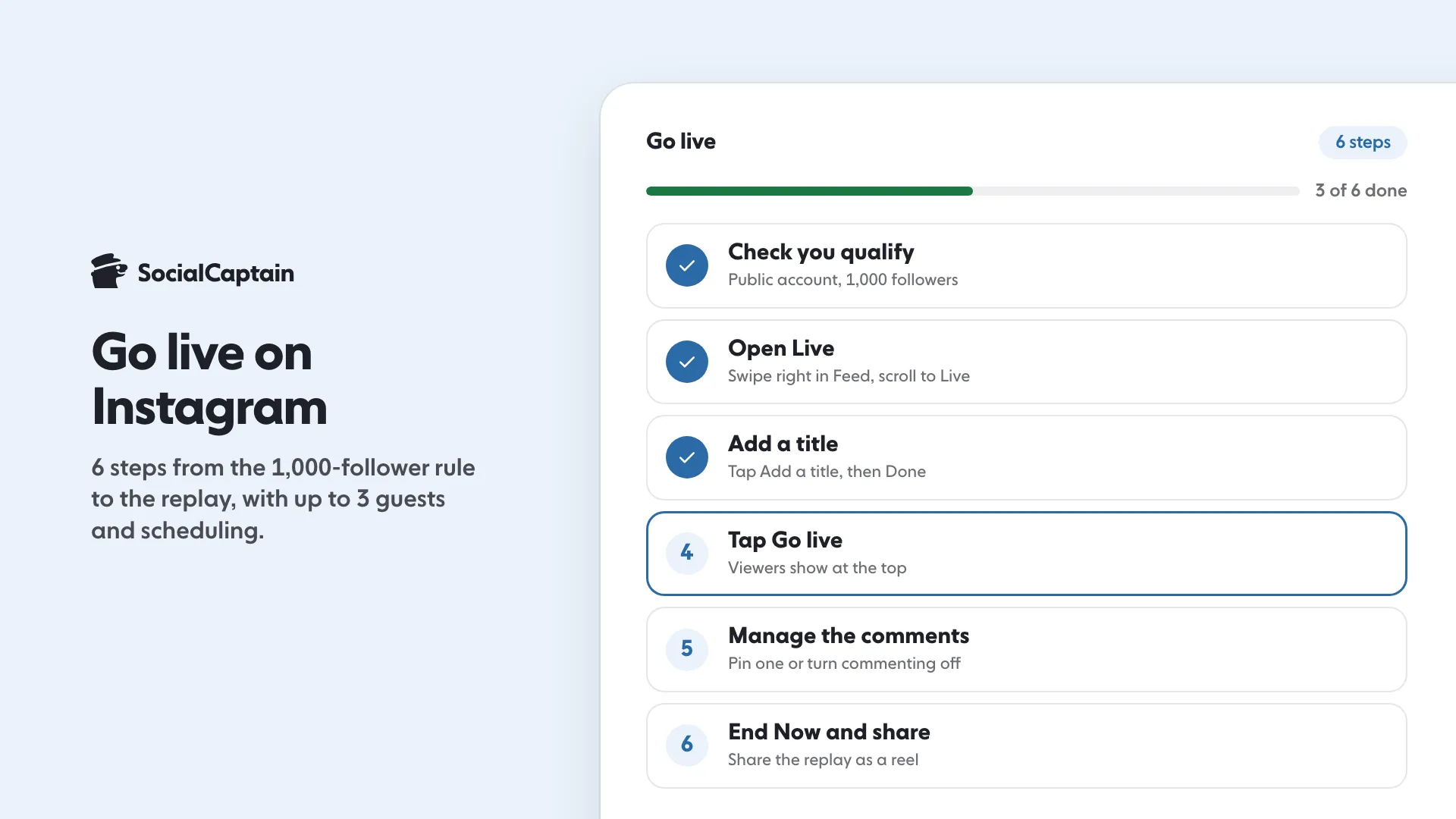
To go live on Instagram, you need a public account with 1,000+ followers, per Instagram's Help Center. Swipe right from your Feed to Live, add a title, tap Go live, and end with Close, then End Now.
- You can invite up to three guests, and each guest must follow you.
- Schedule a live from 1 hour to 90 days ahead on the phone app.
- Share the replay as a reel or find it in Live Archive.
On this page8 sections
To go live on Instagram, you need a public account with at least 1,000 followers. Then swipe right from your Feed to Live, add a title, tap Go live, and end with End Now. That is 6 steps in all, and the same menu lets you invite up to 3 guests, schedule a live from 1 hour to 90 days ahead and share the replay as a reel. Everything here was read on Instagram’s Help Center on 10 November 2026. Instagram changes its menus, so if a button is not where this guide says, use the Help Center pages listed under Sources.
What are the 6 steps to go live on Instagram?
Step 1: Check that you can go live
Instagram says only users with a public account and 1,000 followers or more can start a live video. Two more limits apply. Newly created accounts may not be able to go live, and you may be blocked if you posted something that was removed for breaking the Community Standards. For Teen Accounts, live is off by default: under-16s need a parent’s permission to switch it on, and 16 and 17 year olds can switch it on themselves.
Step 2: Open Live
In the Instagram app, swipe right anywhere in your Feed, then scroll to Live at the bottom. Tapping Create at the top works too.
Step 3: Add a title
Tap Add a title, type it, then tap Done. Say in a few words what the live is about. A title like “Q&A: your questions about Reels” tells a follower what they get.
Step 4: Tap Go live
Tap Go live at the bottom. The number of viewers appears at the top and the comments at the bottom. You can add a comment yourself from the bottom of the screen.
Step 5: Manage the comments
Tap a comment and tap Pin comment so viewers can find it more easily, for example the question you are answering. Tap Options at the bottom to turn off commenting or to turn off requests to go live with you. Keyword filters you already use also apply to comments on your live.
Step 6: End the live and share it
Tap Close at the top right, then End Now. Then tap Share to put it on your profile.
How do you add guests to an Instagram Live?
You can invite up to three guests to your live using Live Rooms. Two conditions apply:
- the guest must follow you;
- the guest appears in your live room if they accept, and you can see if they decline.
To remove a guest, tap X in the top right of their video frame. You can also ask to join someone else’s live: tap Send Request while you are watching. If you want a guest to appear on your grid as well, see Instagram Collab Posts: How They Work in 5 Steps.
You can also assign one moderator to your live. The moderator must be a different account from a co-host and must be tuned in. They can report a comment, remove a viewer from the live or turn off commenting for one account.
How do you schedule an Instagram Live?
Scheduling is available on the phone app, not on computers. You can schedule a live from 1 hour up to 90 days in advance, and the same 1,000-follower rule applies.
- Tap Create at the top or swipe right in Feed, then tap Live.
- Tap Schedule on the left.
- Enter a title and a start time, then tap Done.
- Tap Schedule live video, then tap Share to post it or send it as a story.
Posts and stories you share carry the title and start time, with an option for people to set a reminder. Your soonest scheduled live appears on your profile below your profile picture. Instagram sends you a reminder 24 hours and 15 minutes before. You can change the start time until 45 minutes before it begins.
How do you go live from a computer?
On a computer you stream from Instagram.com with streaming software.
- Open Instagram.com and click Create, then Live video.
- Enter a title and choose the audience. Practice does not start the live for anyone. Public takes you live to your followers.
- Copy the URL and stream key into your streaming software, under Custom RTMP. The key changes each time you use Live Producer.
- Start the stream in your software, check the preview in Live Producer, then click Go live.
- To finish, click End live video in Live Producer first, and only then stop the software. If you stop the software first, Instagram keeps showing the last frame.
What happens to the live after it ends?
After the live ends you can tap Share as reel to put a replay on your profile and Feed. You can also download it or find it in your Live Archive. Three limits apply to a replay: it does not include the likes or comments from the original live, the viewer count restarts, and you cannot edit or trim it before sharing.
How do you get more people to your live?
The platform sets one rule, the 1,000 followers, and the rest is promotion. Announce the live with a scheduled start time so followers can set a reminder, pin the question you will answer, and ask for questions in the comments before you start. The ideas in How to Increase Instagram Engagement: 11 Tactics apply to the comments you get during the live. If you are below 1,000 followers, How to Get More Instagram Followers: 12 Tactics That Work and the Instagram likes page show how to grow an audience of real people first and How to Get More Likes on Instagram: 9 Changes That Work covers engagement tactics for the audience you already have, and the pricing page lists SocialCaptain plans.
TikTok has its own live rules, with a 1,000-follower figure that may vary by region. They are in How to Go Live on TikTok: 4 Requirements and 6 Steps.
FAQ
How many followers do you need to go live on Instagram?
Instagram’s Help Center says only users with a public account and 1,000 followers or more can start a live video. Newly created accounts may not be able to go live, and neither may accounts with content removed for breaking the Community Standards.
How many people can join your Instagram Live?
You can invite up to three guests to your live using Live Rooms. A guest must follow you. You can also ask to join someone else’s live.
Can you schedule an Instagram Live?
Yes, on the phone app. You can schedule a live from 1 hour up to 90 days ahead, and you can change the start time until 45 minutes before it begins.
Can you go live on Instagram from a computer?
Yes. On Instagram.com you click Create, choose Live video, and use Live Producer with streaming software that supports a custom RTMP address and stream key. Scheduling is not available on computers.
Does Instagram save your live video?
Once the live ends you can share a replay to your profile and Feed as a reel, download it, or reach it in your Live Archive. A replay does not include the likes or comments, and you cannot trim it before sharing.
Can you practice before going live on Instagram?
On a computer, Live Producer has a Practice audience that does not start the live for anyone. The phone steps in the Help Center have no practice mode, so rehearse your first minute off-camera.
Sources
- Start a live video on Instagramhelp.instagram.com
- Invite guests to join your live broadcast on Instagramhelp.instagram.com
- Schedule a live video on Instagramhelp.instagram.com
- Share a live video on Instagram after it's endedhelp.instagram.com
- Assign a moderator to your live broadcast on Instagramhelp.instagram.com
Related guides
Written by Lena Ashby
Creator business and analytics editor
Lena Ashby covers the business side of Instagram on the SocialCaptain blog: Insights and engagement rates, when to post, content plans and how creators earn. Each article says where its figures come from and lists its sources at the end.
All articles by Lena Ashby


