How to Go Live on TikTok: 4 Requirements and 6 Steps
Quick answer
To go live on TikTok you must be 18+, have 1,000 followers (may vary by region) and live where LIVE is available. Tap the plus button, tap LIVE, add a title, then tap Go LIVE.
- On a computer, use TikTok LIVE Studio instead of the app.
- Schedule a LIVE with LIVE Events in LIVE Center.
- Receiving Gifts requires age 18+ (19 in South Korea) and a good-standing account.
On this page9 sections
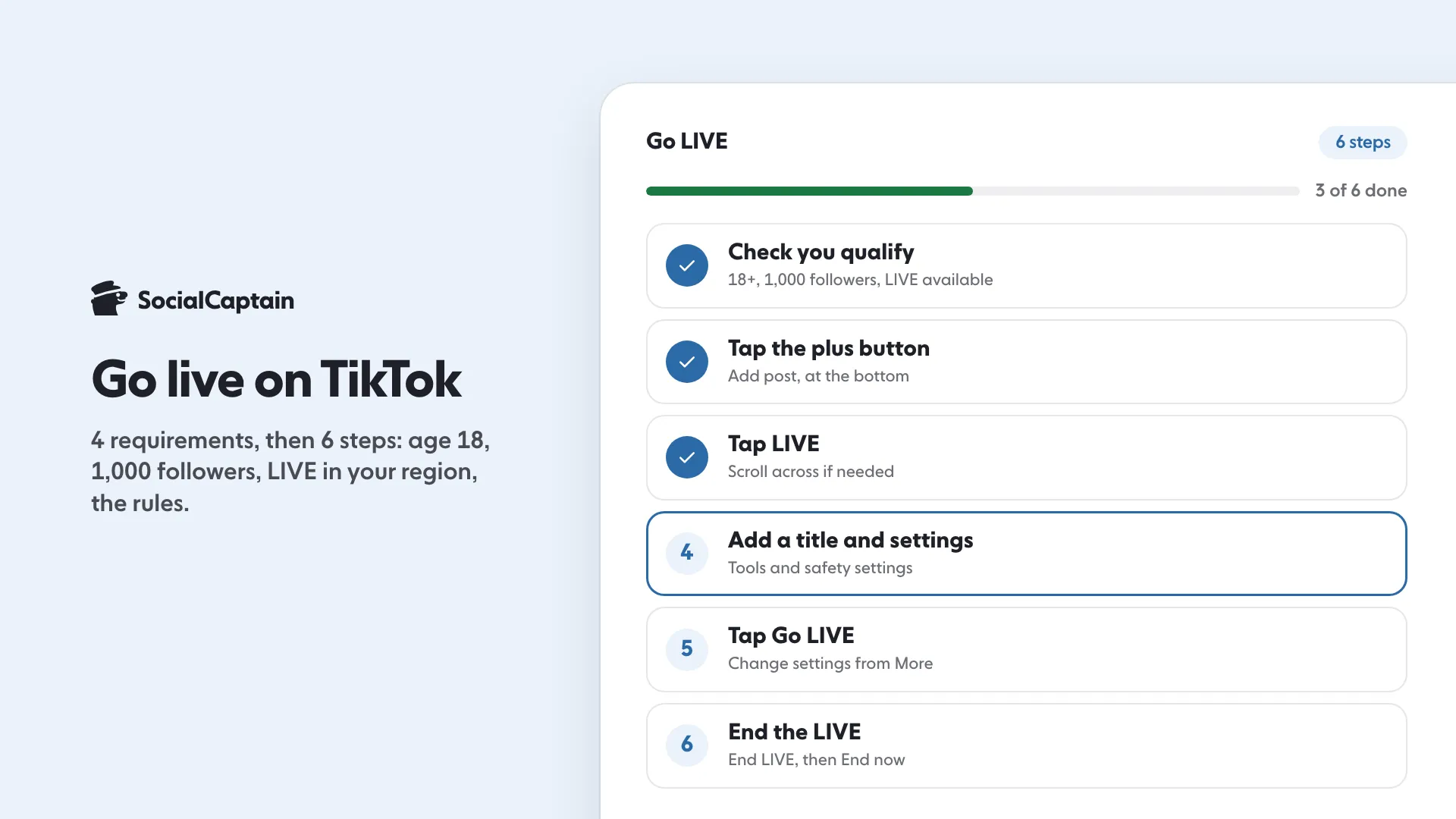
To go live on TikTok you must be at least 18 years old and have 1,000 followers, and LIVE must be available where you live. Follow the Community Guidelines too, and then it takes 6 steps in the app: check that you qualify, tap the plus button, tap LIVE, add a title and settings, tap Go LIVE, and end with End now. On a computer you use TikTok LIVE Studio instead. This guide is based on TikTok’s Help Center and LIVE Studio pages, read on 10 November 2026; TikTok says the follower number may vary by region, so confirm it in your own app.
What are the 4 requirements to go live on TikTok?
- Be at least 18 years old. This is the age to go LIVE. To send or receive Gifts you must also be 18 (19 in South Korea).
- Have 1,000 followers. TikTok says this may vary across regions.
- Be where LIVE is available. TikTok’s Help Center says LIVE and Gift features aren’t currently available everywhere.
- Follow the Community Guidelines and Terms of Service. TikTok ends its list of LIVE requirements with this reminder, and its LIVE Studio FAQ describes appeals for a suspended LIVE or a banned account.
Receiving Gifts has its own list: a location where Gifts are available, an age of 18 or more (19 in South Korea) and an account in good standing. Government, politician and political party accounts cannot collect Diamonds through Gifts.
What are the 6 steps to go live on TikTok?
Step 1: Check that you qualify
Confirm the four requirements above. If you are below 1,000 followers, jump to the plan at the end of this guide.
Step 2: Tap the plus button
In the TikTok app, tap the Add post + button at the bottom.
Step 3: Tap LIVE
Tap LIVE at the bottom. TikTok notes that you may need to scroll across to find it.
Step 4: Add a title and set up
Add a title, use the LIVE tools, or adjust your LIVE settings. Safety settings are in the same place. Say in the title what viewers will get, for example “Answering your questions about editing”.
Step 5: Tap Go LIVE
Tap Go LIVE to start. During the LIVE you can still change the tools and settings, including safety settings, by tapping More at the bottom and then Settings.
Step 6: End the LIVE
When you finish, tap End LIVE at the top, then End now.
How do you go live from a computer?
TikTok LIVE Studio is TikTok’s desktop tool for LIVE.
- Download it at tiktok.com/studio/download. The download page says it supports 64-bit Windows 10 and newer. TikTok’s LIVE Studio FAQ, updated 19 August 2026, says there is a version for macOS too, so check which one the page offers you.
- Log in with your TikTok account and check the access requirements for your country or region.
- If you meet them, click Get access to go LIVE. If you do not, the unmet requirements appear in gray at the top, and you can reapply once you meet them.
TikTok says that if you are on a trial, you must go LIVE for at least 25 minutes, twice, during the first week, or access is revoked. To renew it, meet the access requirements and reapply on the download page.
How do you add guests, co-hosts and a schedule?
- Guests. During your LIVE, tap Guests at the bottom, then Invite, and choose creators or friends. In the guest settings you choose whether requests may come from all viewers or only from your followers, and you can add moderators. TikTok offers three layouts: Panel (recommended for one-on-one LIVEs or audio chats), Grid (for performances or gameplay) and a fixed layout. To remove a guest, tap Disconnect next to them.
- Co-host. During your LIVE, tap +Hosts at the bottom. Tap Send to invite a recommended creator, or Invite to choose a friend (followers you follow back) or someone else. The co-host starts when the other creator accepts.
- Schedule. Tap the plus button, then LIVE, then LIVE Center, then LIVE Events, and tap Create an event. The time you choose is shown in each viewer’s local time. Viewers register for the event from your profile.
Instagram has similar tools; its limits are in How to Go Live on Instagram: 6 Steps, Guests, Scheduling.
Why is the LIVE button missing?
| Cause | How to check | What to do |
|---|---|---|
| Under 18 | The birthdate on your account | Wait until you are 18; there is no workaround |
| Under 1,000 followers | Follower count on your profile | Grow the account first |
| LIVE not available in your location | TikTok’s note that LIVE and Gifts are not available everywhere | Nothing to change in the app |
| Button hidden in the row | The bottom row of the camera screen | Scroll across until LIVE appears |
| LIVE suspended or account banned | Violation details in your inbox or the violation records in LIVE Center | Follow the appeal steps shown there |
| LIVE Studio access not granted | Unmet requirements shown in gray at the top | Meet them, then reapply |
What happens after the LIVE?
Open the LIVE tab in TikTok Studio Analytics. TikTok lists the number of LIVEs, total LIVE views, total LIVE time, new viewers, new followers, unique viewers and the Diamonds you collected, and you can filter by the last 7 to 28 days. Check it after every LIVE and compare, as the guide TikTok Analytics: 9 Metrics to Track and What They Mean explains.
What if you are under 1,000 followers?
You have two jobs: reach 1,000, and make sure the LIVE finds an audience when it starts. For the first, Free TikTok Followers: 6 Legit Ways and 3 Traps to Skip lists what works for free. For the second, a LIVE is a way to talk with the viewers you already have, and the engagement ideas in How to Get More Likes on Instagram: 9 Changes That Work carry over to getting comments in a LIVE. Gifts are one of the routes to income, and How to Make Money on TikTok: 7 Ways and What Each Needs puts them next to the others.
SocialCaptain can help grow the follower base with real people from the audience you choose; see the TikTok followers page and the pricing page.
FAQ
How many followers do you need to go live on TikTok?
TikTok’s Help Center says you need 1,000 followers to go LIVE, and that the number may vary across regions. You must also be at least 18 years old.
Why don’t I have the LIVE button on TikTok?
The reasons that follow from TikTok’s requirements are an age under 18, fewer than 1,000 followers, LIVE not being available in your location, or a suspended LIVE. The button also sits in a row at the bottom of the camera screen, so you may need to scroll across to find it.
Can you go live on TikTok from a computer?
Yes, with TikTok LIVE Studio. You download it, log in with your TikTok account and tap Get access to go LIVE if you meet the access requirements for your country or region.
Can you receive Gifts on TikTok LIVE?
Yes, if LIVE Gifts is available where you live, you are 18 or older (19 in South Korea) and your account is in good standing. Viewers send Gifts during the LIVE and TikTok awards you Diamonds.
Can you add guests to a TikTok LIVE?
Yes. During your LIVE, tap Guests at the bottom, then Invite. In the guest settings you choose whether requests come from all viewers or only from your followers. You can also start a co-host LIVE with another creator.
Can you schedule a TikTok LIVE?
Yes, with LIVE Events. In the app tap the plus button, then LIVE, then LIVE Center and LIVE Events, and create an event. The time you choose is shown to each viewer in their own local time.
Sources
- What is TikTok LIVE? | TikTok Help Centertiktok.com
- LIVE Gifts on TikTok | TikTok Help Centertiktok.com
- TikTok LIVE multi-guest | TikTok Help Centertiktok.com
- TikTok LIVE Events | TikTok Help Centertiktok.com
- FAQ (LIVE Studio Help Center)tiktok.com
- Download LIVE Studiotiktok.com
Related guides
Written by Luca Fenwick
TikTok editor
Luca Fenwick covers TikTok on the SocialCaptain blog: followers, views, the For You feed, bios, video formats and the creator programs. Each guide follows TikTok's own help pages and announcements, and lists its sources at the end.
All articles by Luca Fenwick


