How to Repost on Instagram: 4 Ways With the Repost Button
Quick answer
To repost on Instagram, open a public post or Reel in the app, tap Repost, add an optional note and tap Save. It appears in your profile's Reposts tab, credited to the original poster, and works only if the creator allows reposts.
- Tap Repost again on the same post to undo it.
- You cannot repost a repost.
- Story shares last 24 hours and show the original account.
On this page10 sections
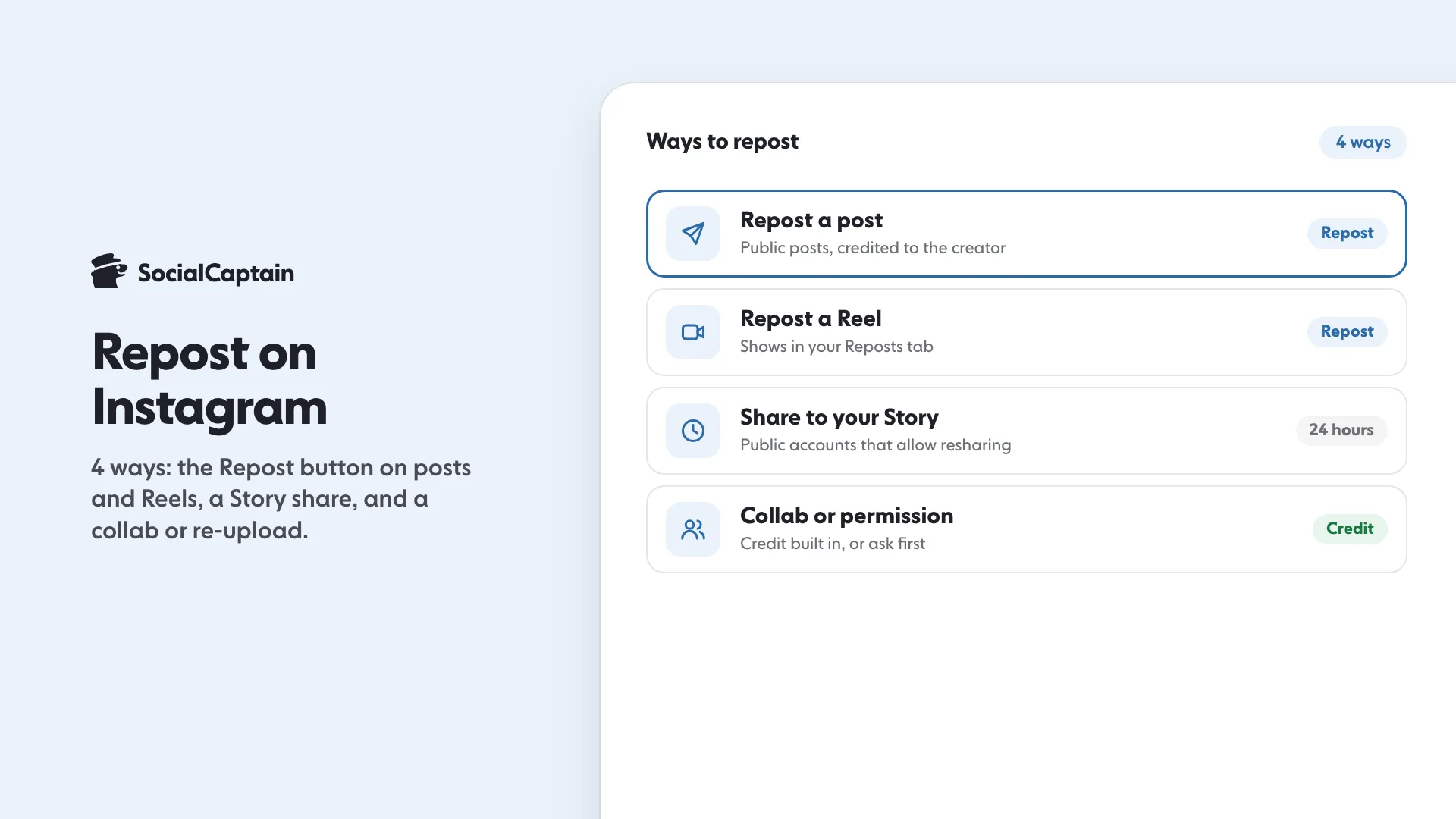
To repost on Instagram, open any public post or Reel in the Instagram app and tap Repost. There are 4 ways to share someone else’s content: the Repost button on a feed post, the Repost button on a Reel, a share to your Story, and a collab post or a re-upload with the creator’s permission and credit. This guide gives the steps for each one, what your followers see, and how to control who can repost you.
What are the 4 ways to repost on Instagram?
| Way | Works for | Credit shown | Where it appears |
|---|---|---|---|
| Repost button on a post | Public feed posts | Original poster | Reposts tab on your profile, followers’ feeds |
| Repost button on a Reel | Public Reels | Original poster | Reposts tab on your profile, followers’ feeds |
| Share to your Story | Posts from public accounts that allow resharing | Original account is visible | Your Story for 24 hours |
| Collab post or permitted re-upload | Content you made with someone, or have permission to use | Collaborator, or the tag in your caption | Your profile grid |
Instagram launched the Repost button on 6 August 2025. Its announcement says reposts are credited to the original poster and appear in a separate tab on your profile. The Help Center adds that the feature is not available on computers and may not be available to everyone yet.
1. How do you repost a post with the Repost button?
- Open the Instagram app and find a public post.
- Tap Repost under the post.
- To add text, tap the bubble by the profile picture at the bottom left of the post and type your note.
- Tap Save.
The post is added to the Reposts section of your profile. Your followers may see it if they come across that content, and other people can comment on your repost. Those comments reach you as direct messages. To undo it, tap Repost again on the same post.
Two limits apply. Instagram says you can repost only when the original creator allows reposts of their content, and only content posted by the original creator can be reposted, so you cannot repost a repost.
2. How do you repost a Reel?
The steps are the same as for a post. Open a public Reel, tap Repost, add a note if you like, and tap Save. The Reel appears in your Reposts tab, and your followers may be shown it.
For the original creator this is a reach opportunity. Instagram’s announcement says that a reposted piece of content may be recommended to the reposter’s followers, even if those people do not follow the creator. If you make content, our guide to how to go viral on Instagram covers what else drives that kind of spread.
3. How do you share a post to your Story?
A Story share is a repost that lives for 24 hours instead of on your profile.
- Tap Share below the photo or video in your feed.
- Tap Add to story.
- Tap Next in the bottom right.
- Tap Share.
This works only when the other account is public and has allowed resharing of its posts. Anyone who views your Story can see who originally posted the content and can open the original account. Instagram also notes that the sharing option is not available to everyone. The creator cannot see who reshared a Reel or where.
4. How do you repost with credit by collab or permission?
When you want the content on your own grid rather than in the Reposts tab, there are two routes.
- A collab post. Invite the creator to be a collaborator on a post you make together, so the credit is built in. Instagram Collab Posts: How They Work in 5 Steps walks through the invite.
- A re-upload with permission. Ask the owner first, name them in the caption and tag them. Instagram’s guidance is that you are responsible for obtaining any necessary permissions before using someone else’s work.
A plain re-upload is the weakest option. Instagram’s original-content guidelines say that stitching clips together or adding a watermark does not count as a material edit, and its advice for curating other accounts’ content without edits is to repost it or share it to your Stories, so the original creator gets credit and reach.
Who can see your repost?
Your followers can see it in their feeds when Instagram recommends it, and anyone who opens your profile can find it in the Reposts tab. A reposted item is not a new post on your grid, and it does not replace your own content. Use reposts to show what you rate, and keep your grid for what you make.
How do you manage or stop reposts?
- Find your reposts: tap your profile picture, then the Reposts tab on your profile.
- Delete several at once: tap Menu, then Your activity, then Reposts, select the items and tap Delete.
- Stop others reposting you: tap Menu, then Sharing and reuse, and switch off Reposts on posts and reels.
- Stop Story shares: in the same Sharing and reuse screen, switch off the Posts and reels to stories toggle.
- Report a repost: long-press the profile picture of the repost at the bottom left, tap Report and follow the instructions.
When should a brand repost?
Reposting suits content that is already good and already yours to share: a customer’s photo of your product, a partner’s announcement, or a Reel by someone your audience follows. It does not suit content you cannot credit, or content that does not fit your niche.
The balance matters. A profile made only of other people’s content gives a new visitor little reason to follow. Mix reposts with your own formats, which Instagram Post Size: 4 Formats and Dimensions for 2026 and Instagram Carousels: How to Make One in 7 Steps cover, and use Instagram Notes: How They Work, Limits and 40 Ideas for quick updates between posts.
A repost shows your followers what you like, but it is not your own work, so it gives a new visitor little reason to follow you. If your audience is the limit, SocialCaptain’s plans add real followers who match your niche, country, language and interests, so your own posts reach people who care.
FAQ
Can you repost on Instagram without an app?
Yes. Instagram has its own Repost button for public posts and Reels, so no third-party app is needed. It works in the Instagram app on a phone or tablet, not on a computer.
Where do my reposts show up?
In a separate Reposts tab on your profile. Your followers may also see a repost in their feeds, and you can manage or delete reposts under Menu, then Your activity, then Reposts.
Can I repost a private account’s post?
No. Instagram lets you repost public reels and posts only, and only when the original creator allows reposts of their content.
Can I repost a repost?
No. Instagram says only content posted by the original creator can be reposted, so a repost cannot be reposted again.
Do I need permission to repost someone’s photo?
The Repost button credits the original poster and follows the creator’s own sharing settings. For any other way of reusing a photo, Instagram says you are responsible for getting the permissions you need.
How do I stop others from reposting my content?
Open your profile, tap Menu, tap Sharing and reuse, and switch off Reposts on posts and reels. A separate switch controls whether people can share your posts and reels to their Stories.
Sources
- Repost a reel or a post on Instagramhelp.instagram.com
- New Instagram Features: Connect & Share Easilyabout.instagram.com
- Share someone's post from feed to your Instagram storyhelp.instagram.com
- About original content on Instagramhelp.instagram.com
Related guides
Formats and sizes
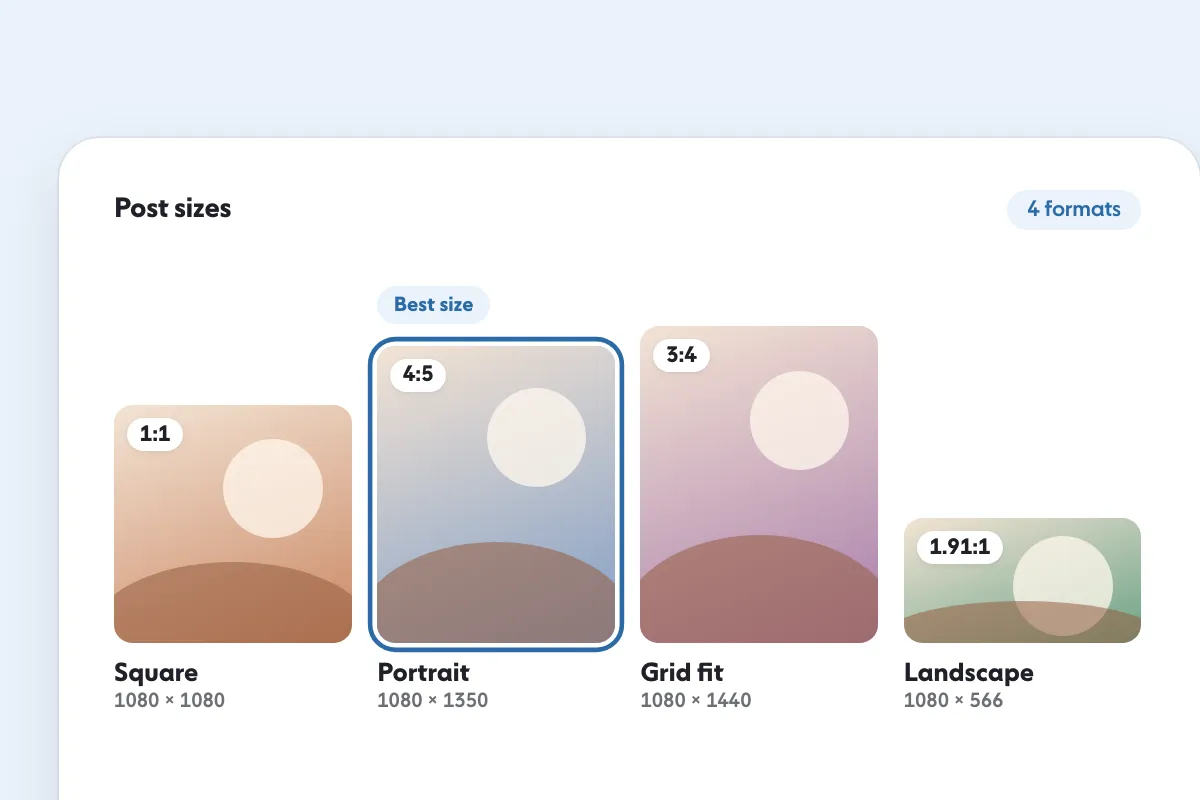
Instagram Post Size: 4 Formats and Dimensions for 2026
Formats and sizes
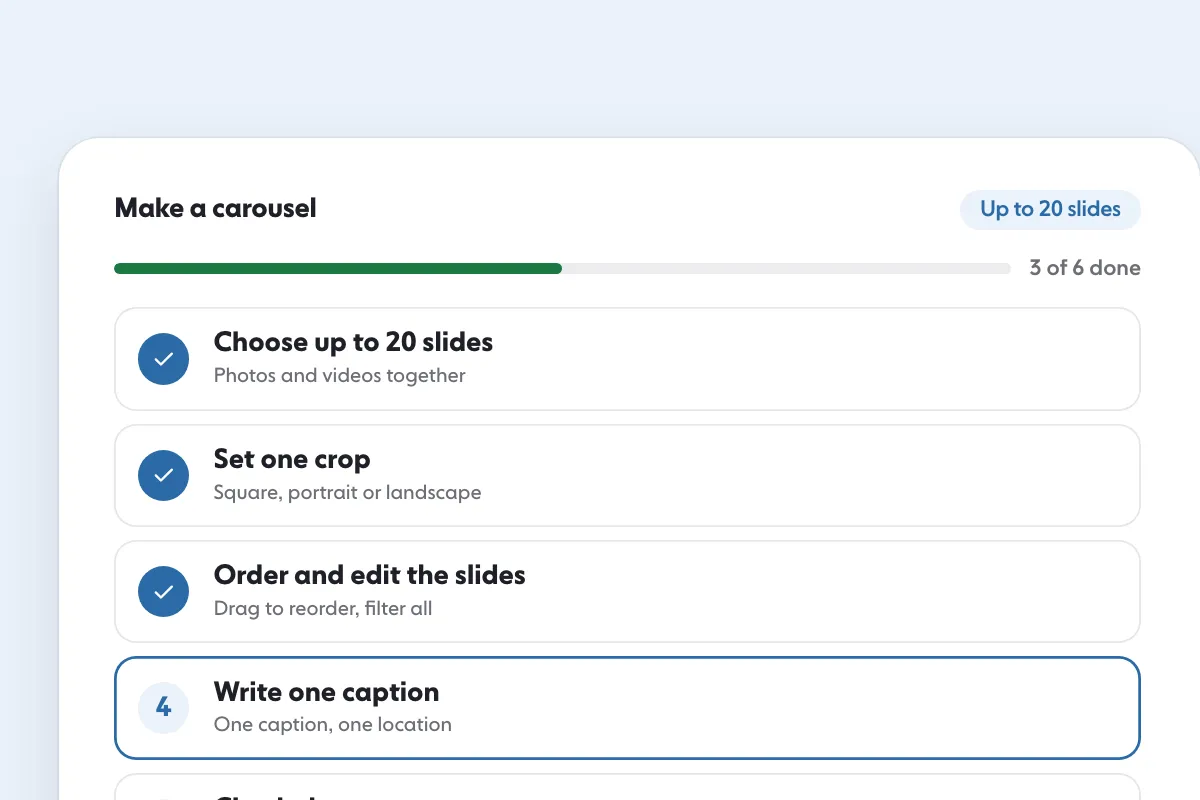
Instagram Carousels: How to Make One in 7 Steps
Formats and sizes
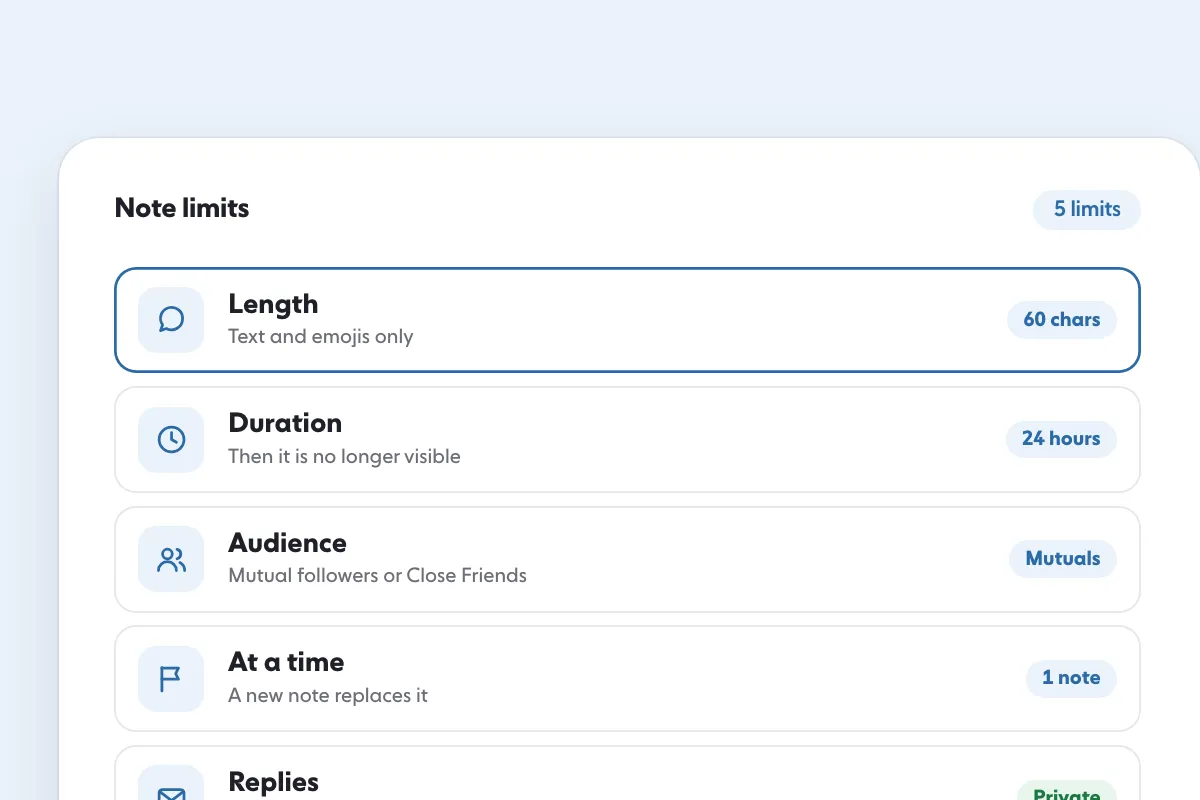
Instagram Notes: How They Work, Limits and 40 Ideas
Written by Clara Ivens
Instagram growth editor
Clara Ivens covers Instagram growth on the SocialCaptain blog: followers, Reels, hashtags, bios, captions and how reach works. Each guide follows Instagram's own help pages and announcements, and lists its sources at the end.
All articles by Clara Ivens


