Instagram Carousels: How to Make One in 7 Steps
Quick answer
An Instagram carousel is one post with up to 20 photos and videos. To make one, choose your slides, set one crop for all of them, reorder them, edit, write the caption and one location, check the cover slide, then share.
- Build every slide at one size, such as 1080 x 1350 (4:5).
- You can reorder or remove slides after posting, but not add new ones.
- Videos in a carousel are not Reels and do not reach the Reels tab.
On this page10 sections
An Instagram carousel is one post with up to 20 photos and videos that people swipe through. To make one, pick your slides, set a single crop for all of them, put them in order, edit, write your caption and share. This guide gives the 7 steps from Instagram’s Help Center, how to design the cover slide so it works in the profile grid, and 6 slide types to build a carousel around. For sizes and ratios in more depth, see Instagram Post Size: 4 Formats and Dimensions for 2026.
How do you make an Instagram carousel in 7 steps?
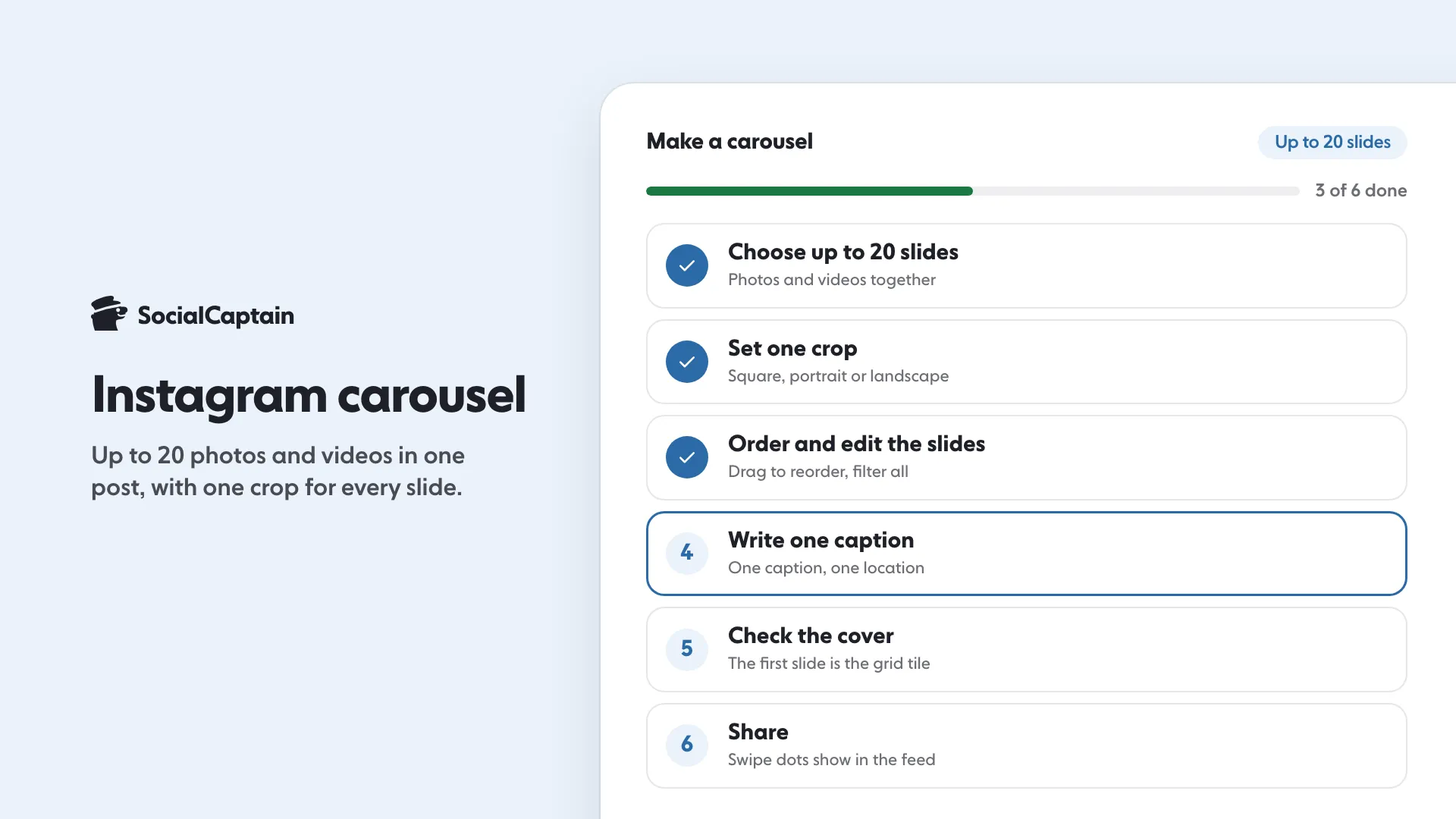
- Choose up to 20 photos and videos. Create a new post and turn on multiple selection. Instagram’s Help Center says you can share up to 20 photos and videos as a single post, which it calls a carousel.
- Set one crop for the whole post. The orientation you choose, square, portrait or landscape, affects every photo and video in the post. You cannot select a different orientation for each one. To adjust how a single slide fits, tap it, then touch the screen to move it in the frame.
- Put the slides in order. Tap and hold a slide, then drag it to another spot. To remove one, tap and hold it and drag it to the remove icon.
- Apply a filter or edit each slide. One filter can be applied to every slide, or you can edit slides one by one.
- Write your caption and add one location. You get one location for the whole post. The caption can be one caption for the whole post or a separate caption for each slide: choose Single caption or Multiple captions. You can tag someone in each individual photo.
- Check the cover. The first slide is what people see first in the feed and what appears on your profile. Look at it as a small tile before you post.
- Share. Posts with several videos can take longer to upload, so use a reliable connection.
What do people see after you post?
In the feed, they see the first photo or video with a row of dots below it and swipe to see the rest. On your profile, the post shows the first slide with an icon in the top right that marks it as a multi-photo post. Likes and comments appear on the whole post, not on a single slide.
Videos in a carousel are not considered Reels. They do not show in the Reels tab and do not have Reels features. If you want a video to reach new people, make it a Reel instead: How to Make a Reel on Instagram: 8 Steps, From Clip to Post covers it, and Reels vs Posts on Instagram: 6 Differences helps you decide which format a given idea needs.
What size should carousel slides be?
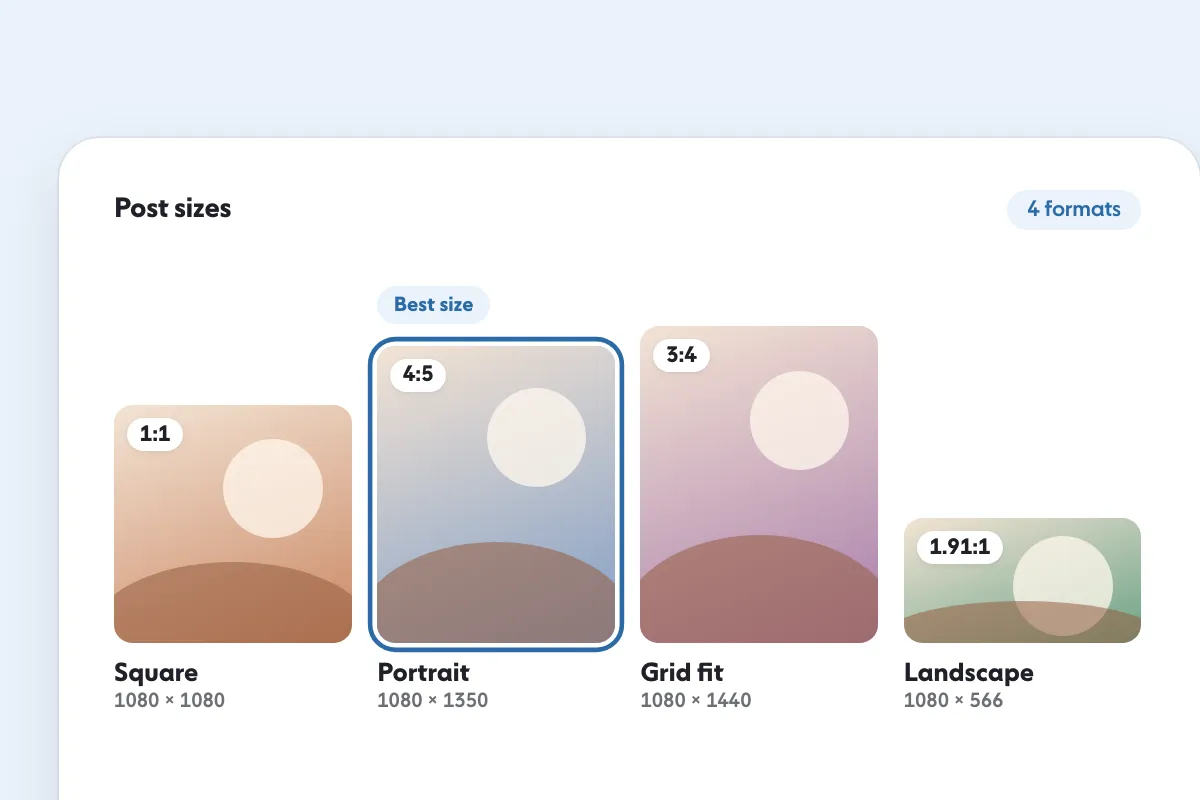
Instagram uploads photos at the best resolution possible, up to a width of 1080 pixels. A photo whose width is between 320 and 1080 pixels keeps its original resolution when its aspect ratio is between 1.91:1 and 3:4, which is a 1080-pixel width with a height between 566 and 1440 pixels. Outside that range, Instagram crops it to fit.
For a carousel that means three practical choices:
- 1080 x 1350 (4:5): the portrait standard for most photo slides.
- 1080 x 1440 (3:4): the tallest ratio in Instagram’s supported range, which suits the tall tiles of the profile grid.
- 1080 x 1080 (1:1): square, which the tall grid crops.
Pick one and build all slides at that size, because you cannot choose a ratio per slide. The Instagram grid preview tool shows how your first slide will look on a profile, and the Instagram grid maker splits one photo into numbered 1080 x 1440 posts. The free Instagram photo resizer crops a photo to the ratio you pick, with a circle preview.
How do you design the cover slide?
The cover is the first slide, so it carries the job of a headline. A few rules that hold on any account:
- Say what the carousel gives. A short promise in large type, such as “5 mistakes in our onboarding emails”, tells a stranger why to swipe.
- Keep text and faces in the middle. The grid shows a tile, so leave a margin around the edges.
- Match your other covers. Same font, same colors, same position for the title. A profile with consistent covers looks planned.
- Show that there is more. A number, an arrow or a half-visible next element signals that the post continues.
What are 6 slide types you can build around?
- Steps. One step per slide, numbered, ending with the result.
- Myth and fact. Slide one states the myth, slide two corrects it.
- Before and after. Two slides side by side in meaning, repeated for several examples.
- Checklist. One slide, ticked boxes, saved for later.
- Mini story. A beginning, a problem, a turn and an ending, one beat per slide.
- Photo dump with a caption. Ten photos from one day or trip, ordered from the strongest to the quietest.
Each of these suits a clear closing slide: one sentence that says what to do next, such as save the post, send it to a friend or visit your link in bio. Avoid putting more than one action on that slide.
How long should a carousel be?
The limit is 20 slides. Instagram gives no ideal count, and we found no official figure for it. A practical way to decide is to give each idea its own slide and stop when the idea is finished. A checklist may need 5 slides. A story or a trip may use 10 or more. Remove any slide that does not add something new, and put the strongest slide second so that people who swipe once are already rewarded.
What can you change after you post?
You can reorder the slides, remove slides, edit your caption, and edit the location and the accounts you tagged. Open the three-dot menu on the carousel, choose Edit, press and hold to reorder, and save your changes. You cannot add new photos or videos after you share, though you can delete the post.
How do carousels fit a growth plan?
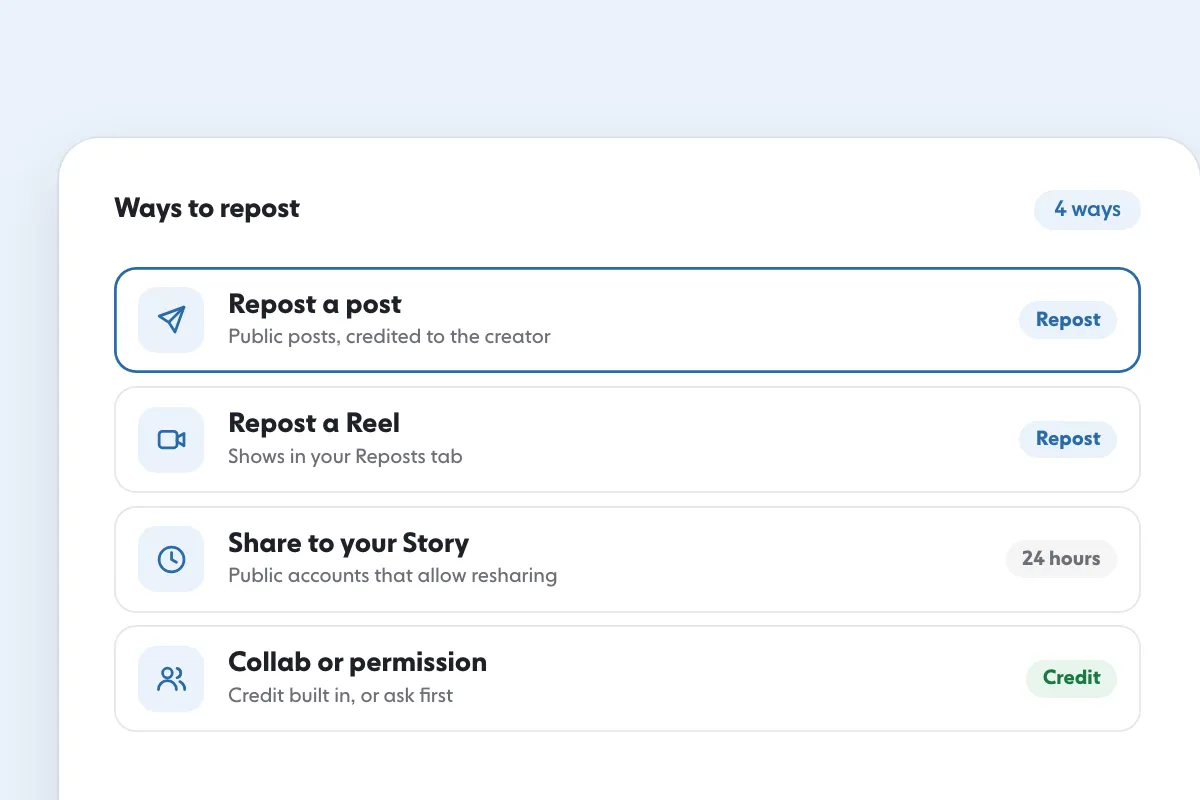
A carousel is a good home for content you want people to read at their own pace, such as steps, checklists and short stories. Reels and carousels do different jobs, so plan both in your content strategy. If your audience is small, SocialCaptain’s plans add real followers who match your niche, country, language and interests, so each carousel has people to read it. If you also share other people’s posts, How to Repost on Instagram: 4 Ways With the Repost Button explains the steps.
For a worked example of a process carousel, see Instagram for artists: 8 ways to get seen and sell.
FAQ
How many photos can an Instagram carousel have?
Up to 20 photos and videos in one post. Instagram’s Help Center describes a post with up to 20 photos and videos as a carousel.
Can I mix photos and videos in a carousel?
Yes. A carousel can hold both. Videos in a carousel are not Reels, so they do not appear in the Reels tab or get Reels features.
Can I use different sizes in one carousel?
No. The orientation you choose, square, portrait or landscape, applies to every photo and video in the post, and you cannot pick a different one for each.
Can I add or reorder slides after posting?
You can reorder them, remove them and edit the caption, location and tags. You cannot add new photos or videos after you share the carousel.
Do likes and comments count per slide?
No. Likes and comments appear on the whole post, not on individual photos or videos inside it.
What is the best size for carousel slides?
Instagram keeps a photo at its original resolution when its aspect ratio is between 1.91:1 and 3:4, up to a width of 1080 pixels. A 1080 x 1350 (4:5) or 1080 x 1440 (3:4) portrait slide fits that range.
Sources
- Share a post with multiple photos or videos on Instagramhelp.instagram.com
- Image resolution of photos you share on Instagramhelp.instagram.com
Related guides
Formats and sizes
Instagram Post Size: 4 Formats and Dimensions for 2026
Formats and sizes
How to Repost on Instagram: 4 Ways With the Repost Button
Written by Clara Ivens
Instagram growth editor
Clara Ivens covers Instagram growth on the SocialCaptain blog: followers, Reels, hashtags, bios, captions and how reach works. Each guide follows Instagram's own help pages and announcements, and lists its sources at the end.
All articles by Clara Ivens


