How to Schedule Instagram Posts: 3 Methods Step by Step
Quick answer
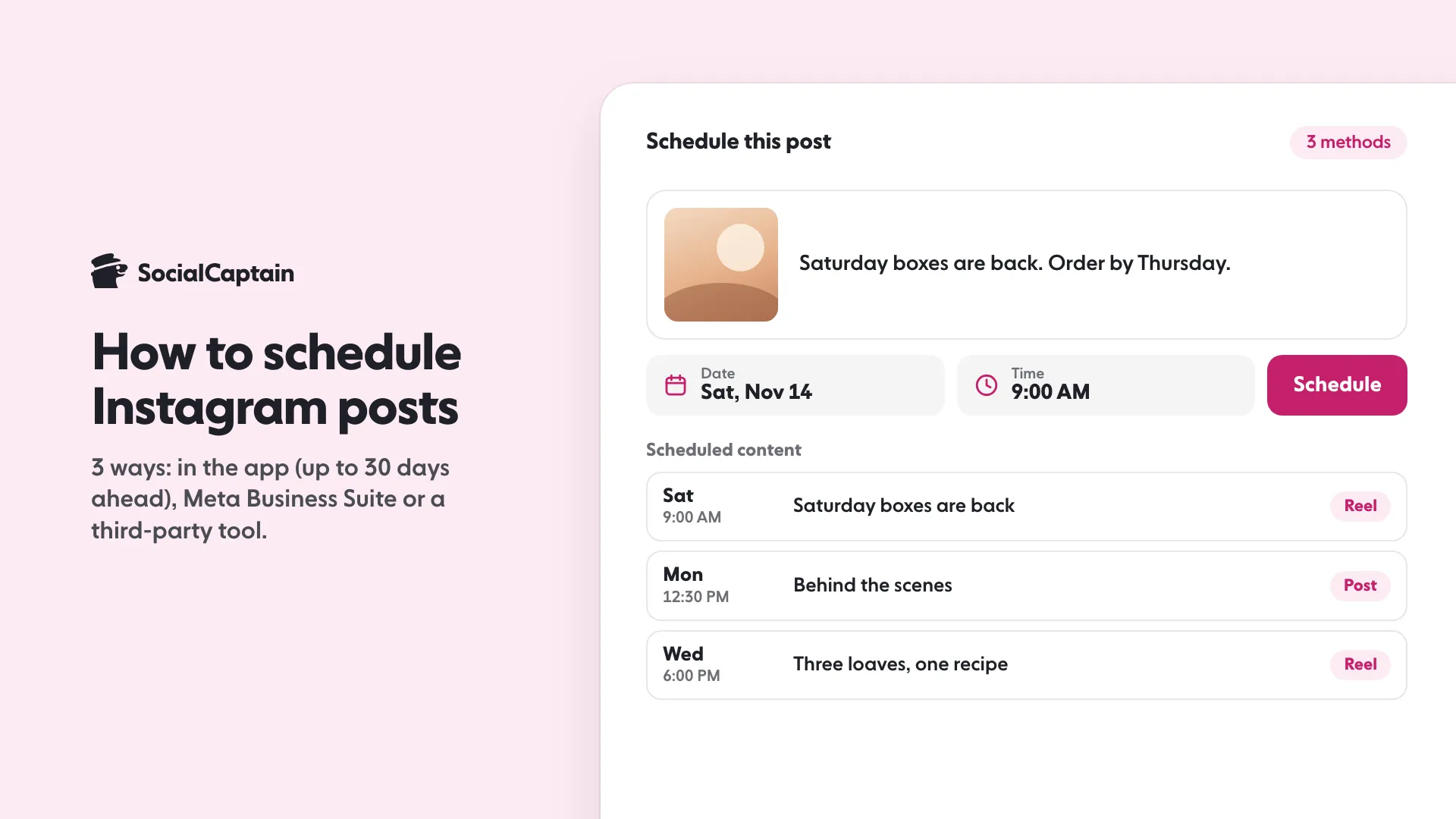
You can schedule Instagram posts in 3 ways: in the app's create flow, from Meta Business Suite on a desktop, or with a third-party scheduler. In the app, open More options, turn on Schedule this post, pick a date and time, then tap Schedule.
- Scheduled posts sit under Scheduled content in your profile menu.
- Pick times when your followers are active, shown in Insights.
- Check a scheduler supports Reels and carousels before paying.
On this page9 sections
You can schedule Instagram posts in 3 ways: inside the app’s own create flow, from Meta Business Suite on a desktop, or through a third-party scheduler that publishes on your behalf. Each method has its own limits, and the third one is the one built for volume, several accounts and approvals.
Can you schedule posts on Instagram?
Yes, and the in-app option is enough for most accounts. The reason to look further is usually volume: an account posting several times a week across feed and Reels needs a queue, not a reminder.
Scheduling also changes how you work. Instead of posting when inspiration arrives, you batch: make the content once, write the captions in one sitting, and let the times fall where your audience is.
Method 1: Schedule in the Instagram app
Quick, and no second tool to learn.
- Open the create flow and choose a post or a Reel.
- Add the media, then the caption, the tags and any location.
- Tap More options and turn on Schedule this post or Schedule this reel, then choose a date and time.
- Tap Done, tap Back, then tap Schedule.
Your scheduled posts sit under Scheduled content in the profile menu (or under Scheduled when you create a post), where you can edit, reschedule, share now or delete them. They keep the privacy and audience settings you had when you scheduled them.
What it is good for: one or two posts a week, no desktop, no subscription.
Its limits: it needs a public account, schedules Reels, photos and carousel posts up to 30 days ahead and up to 25 posts a day, and does not work with product tagging, collaborative posts, sponsored posts or fundraisers (Instagram Help Center, read 11 November 2026). It does not list Stories. Older guides say 75 days and a professional account; both are out of date.
Method 2: Use Meta Business Suite
Free, desktop, and built for a calendar view.
- Sign in to Business Suite with the account that manages the profile.
- Open Planner or Content, then Create post.
- Add the media and caption, choose Instagram as the destination, and pick the date and time.
- Save it to the queue. Scheduled posts appear on the calendar.
What it is good for: seeing the month at once, and posting the same content to more than one place.
What it will not do: match the app’s editor, which has more effects and stickers. Stories are scheduled from Create story rather than Create post. The interface changes often enough that labels differ between accounts, so if a screen does not match, look for the calendar icon rather than a menu name.
Method 3: Use a third-party scheduler
The option built for volume and for teams.
- Connect the Instagram account through the tool’s Instagram login, which is how it gets publishing access. You never type your password into the tool itself.
- Build the post: media, caption, first comment, tags.
- Put it in the queue, either at a fixed time or in the next free slot.
- Review the queue weekly and replace anything that no longer fits.
What it is good for: a month of posts in one sitting, several accounts, and approvals if someone else signs off the content.
What to check before you pay: whether the tool supports Reels and carousels in the formats you use, how it handles a failed publish, and whether it shows the reason for the failure. Meta’s developer documentation limits an Instagram professional account to 100 API-published posts in a 24-hour period (a carousel counts as one), so a very large queue may be spread over time.
What is the best time to schedule for?
The hour your own followers are active, not a universal time from a blog post. Two ways to find it:
- Insights. The audience section shows when your followers are on the app, in hours and days.
- The tool. The free best time to post on Instagram tool gives a starting schedule for your niche and time zone. It is a rule of thumb, not data from your account, so test it against Insights.
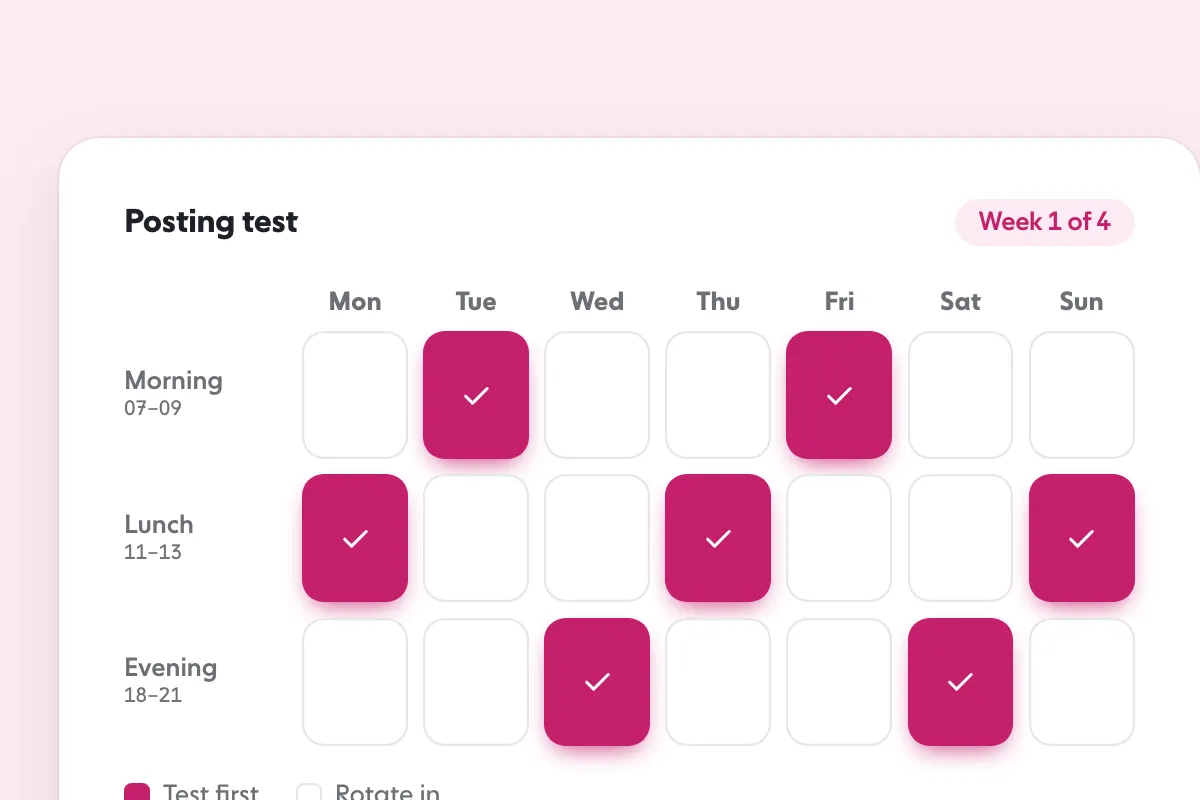
Then test it properly. Post at the same hour for four weeks, keep the reach numbers, and change one thing at a time. A schedule that ignores your audience’s hours is just a tidier way of posting at random.
Which method should you choose?
| Your situation | Method |
|---|---|
| One or two posts a week, mostly from your phone | In the app |
| Planning on a computer, with a calendar view | Meta Business Suite |
| Several posts a week, or several accounts | A third-party scheduler |
| Stories every day | Post them in the app, or schedule them in Business Suite |
A hybrid works well: schedule feed posts and Reels in a tool, and post Stories on the day they happen. Stories are where the account feels alive, and a scheduled Story often reads as one.
A weekly routine that keeps the queue full
Scheduling only helps if the queue is fed.
- Monday: decide the week’s posts from your content mix, one Reel and one carousel at minimum.
- Tuesday: make the media.
- Wednesday: write the captions and the first comments, then schedule.
- Every day: twenty minutes of replies and comments, which no scheduler can do for you.
- Friday: read the week’s numbers and keep the format that worked.
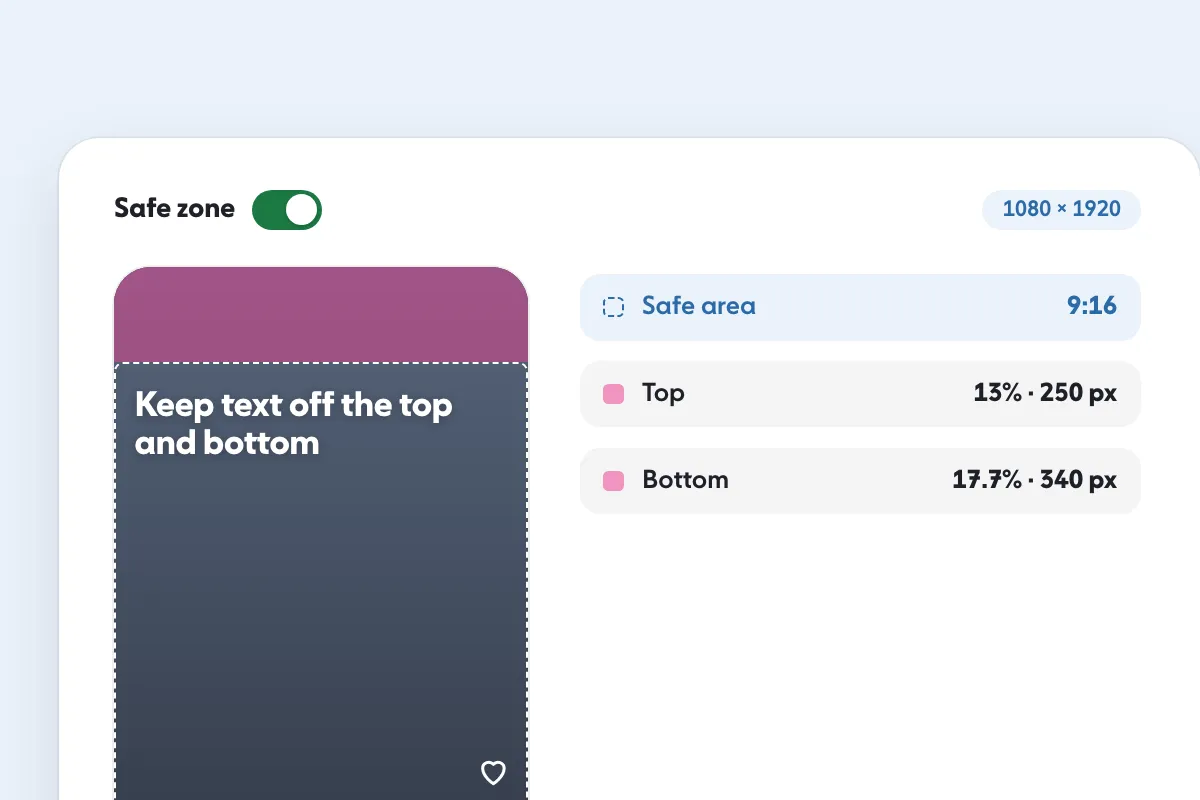
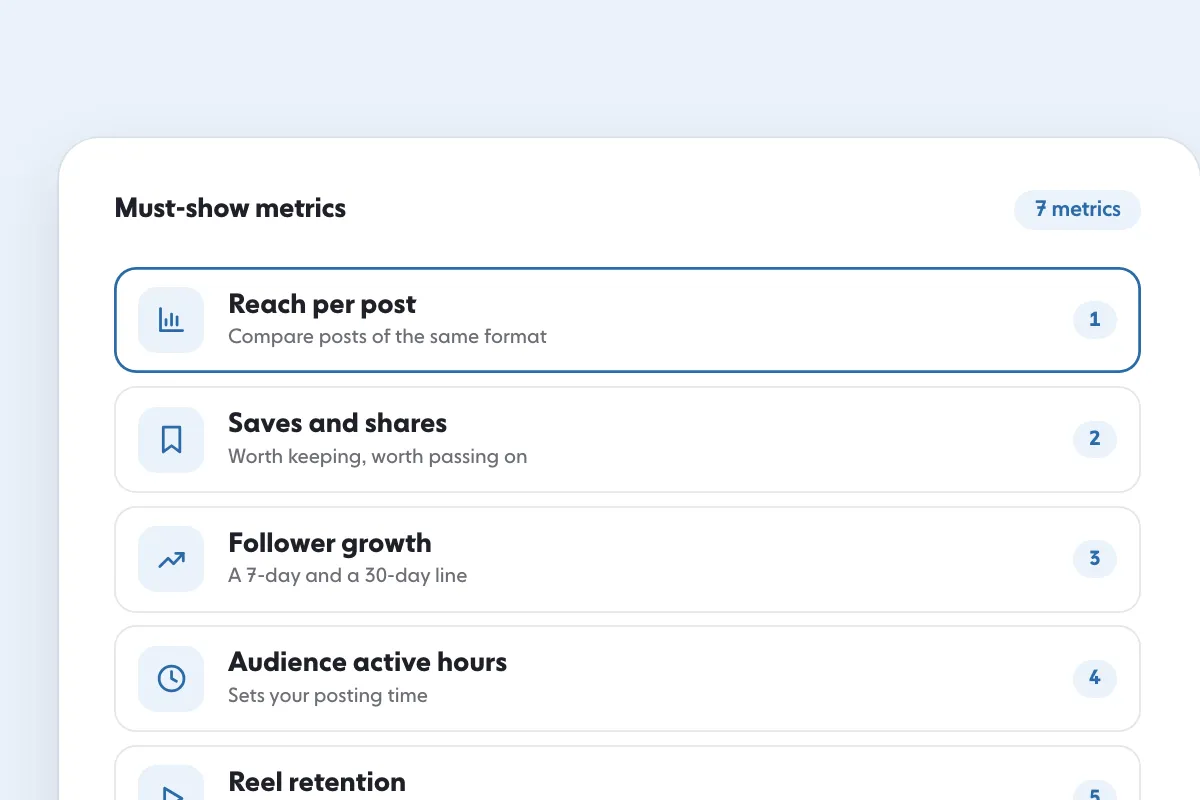
This routine is the posting half of Instagram Growth Strategy: 5 Pillars and a 30-Day Plan. The measuring half is in Instagram Analytics Tools: 7 Metrics Every Tool Should Show, and the Story format has its own rules in Instagram Story Size: 1080 x 1920 and the Safe Zone.
To choose the slot itself, Best Day to Post on Instagram: A Day-by-Day Guide shows how to read your own numbers.
FAQ
Can you schedule posts on Instagram?
Yes. The app can schedule a post or a Reel for a later date, Meta Business Suite does the same from a desktop with a calendar view, and third-party schedulers add a queue that publishes for you through Instagram’s own publishing access.
How far in advance can you schedule an Instagram post?
Up to 30 days ahead in the app, and up to 25 posts a day, according to Instagram’s Help Center. Older guides say 75 days, which is out of date.
Can you schedule Instagram Stories?
The built-in scheduler covers Reels, photos and carousel posts, not Stories. Meta Business Suite and some third-party schedulers can schedule Stories, and many accounts still post them live.
Do you need a professional account to schedule posts?
Not for the app’s own scheduler: any public account can use it, and Instagram’s Help Center lists a public account as the requirement. Third-party schedulers publish through Instagram’s API, which needs a business or creator account.
What is the best time to schedule an Instagram post?
The hour when most of your own followers are active. Insights shows that window, and the free best time to post tool gives a starting schedule for your niche and time zone to test against it. Post at that hour for four weeks, then compare.
Sources
- How to create and manage scheduled posts and Reels on Instagramhelp.instagram.com
- Content Publishingdevelopers.facebook.com
Related guides
Timing and planning
Best Day to Post on Instagram: 7-Day Grid, 4-Week Test
Formats and sizes
Instagram Story Size: 1080 x 1920 and the Safe Zone
Written by Lena Ashby
Creator business and analytics editor
Lena Ashby covers the business side of Instagram on the SocialCaptain blog: Insights and engagement rates, when to post, content plans and how creators earn. Each article says where its figures come from and lists its sources at the end.
All articles by Lena Ashby


